
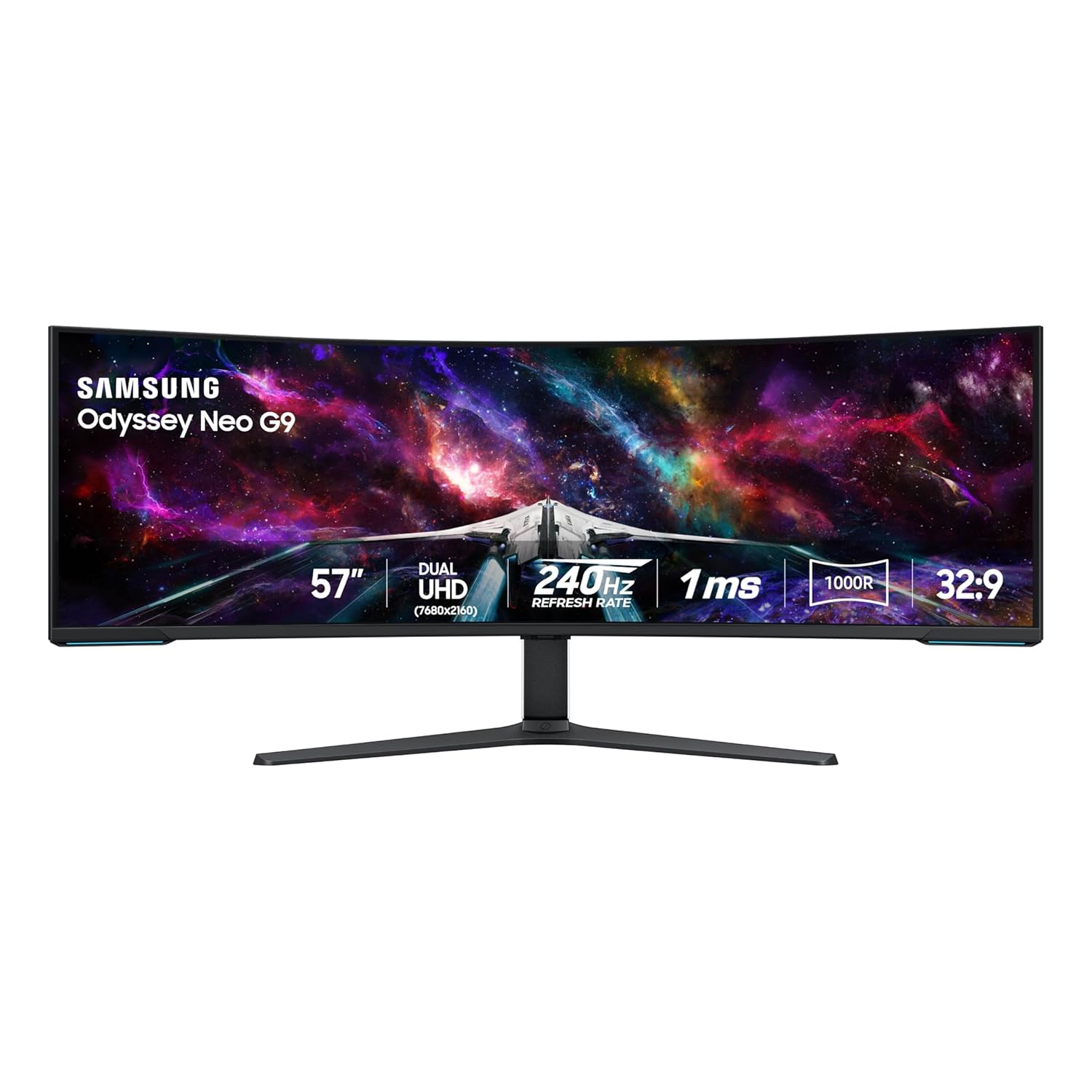
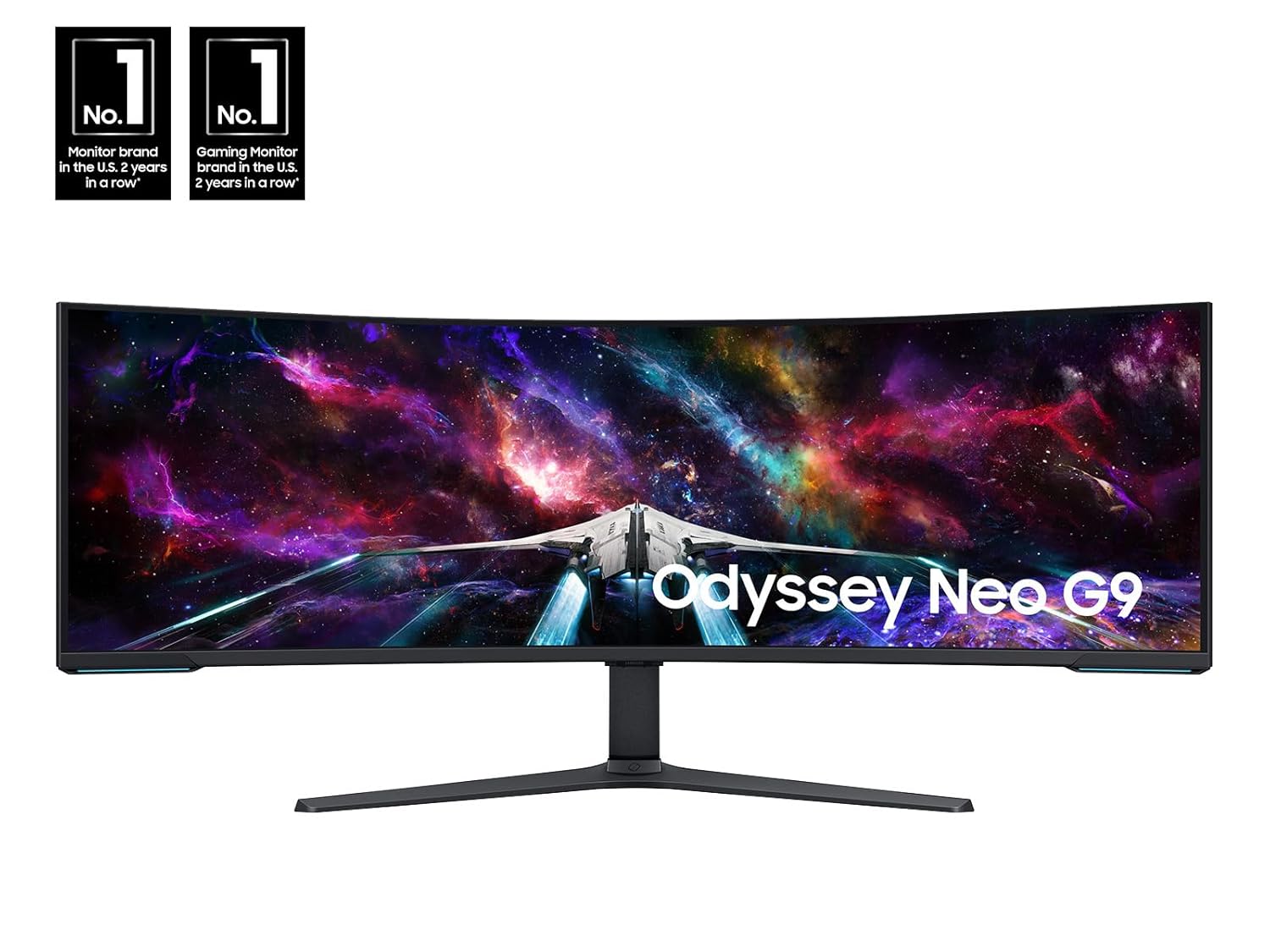
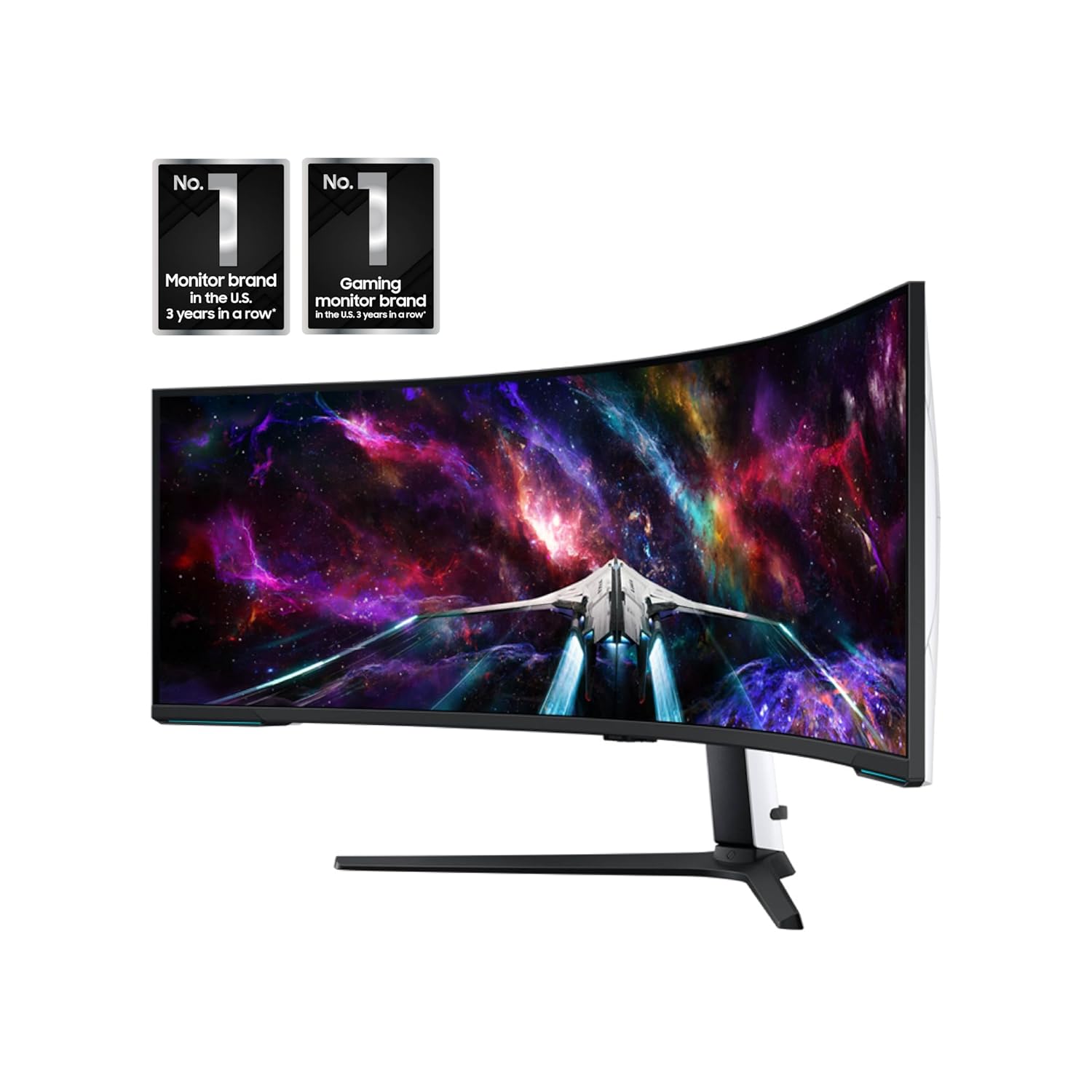
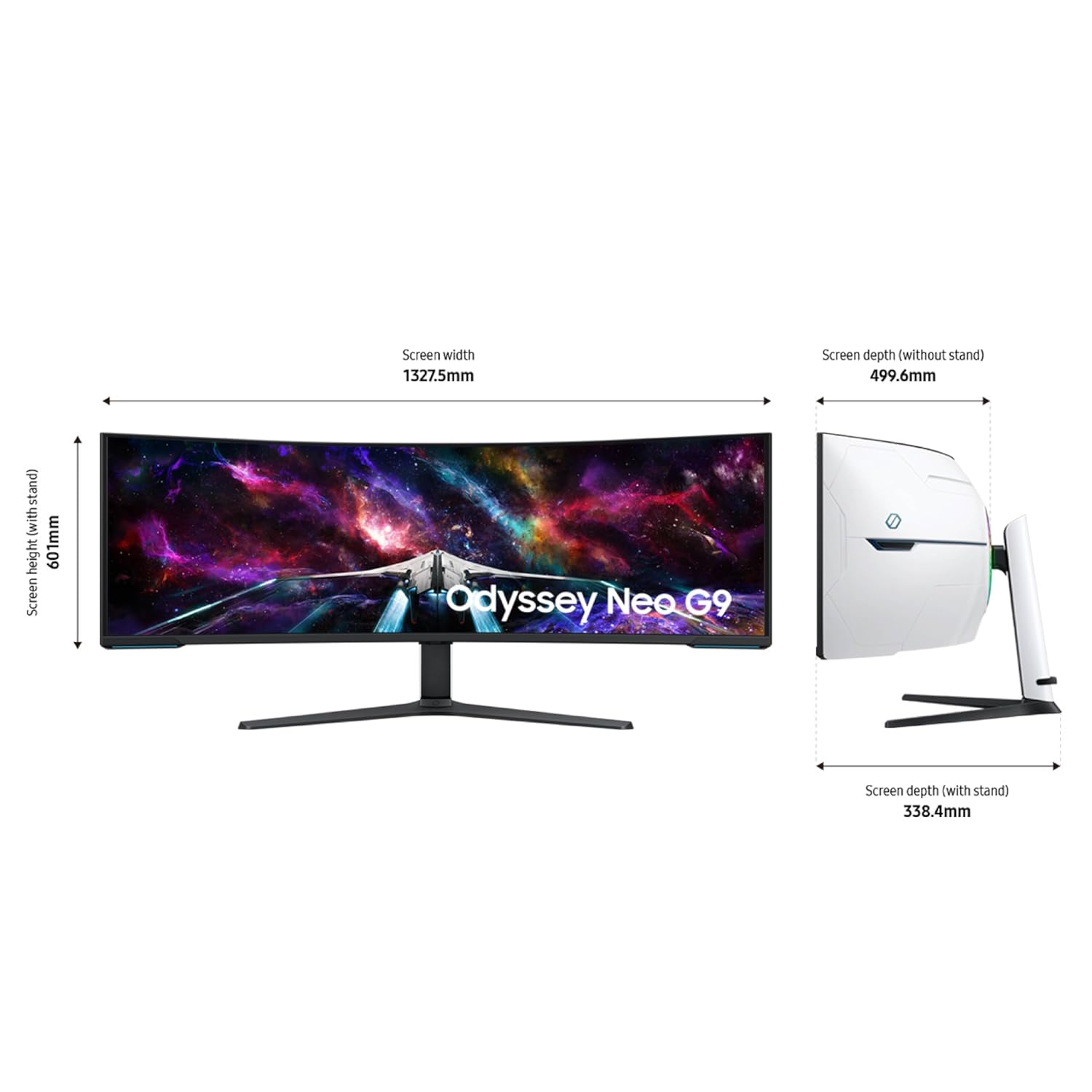
Samsung 57″ Odyssey Neo G9 (G95NC) Series Dual 4K UHD 1000R Curved Gaming Monitor, 240Hz, 1ms with DisplayPort 2.1, Quantum Mini-LED, DisplayHDR 1000, AMD FreeSync Premium Pro,…
$1,499.99
 Hybzone
Last updated on 05/29/2026 5:18 AM Details
- WORLD’S 1ST DUAL UHD MONITOR: 57″ DUHD resolution brings you a display as wide as 2 UHD monitors with incredibly detailed, pin-sharp images and a wide field of view; See more of the action and play with conviction, knowing you won’t miss a thing
- WRAP YOURSELF IN ADVENTURE: Experience the next level of heart-pounding gaming with even more intensity as the vivid scenes wrap around you
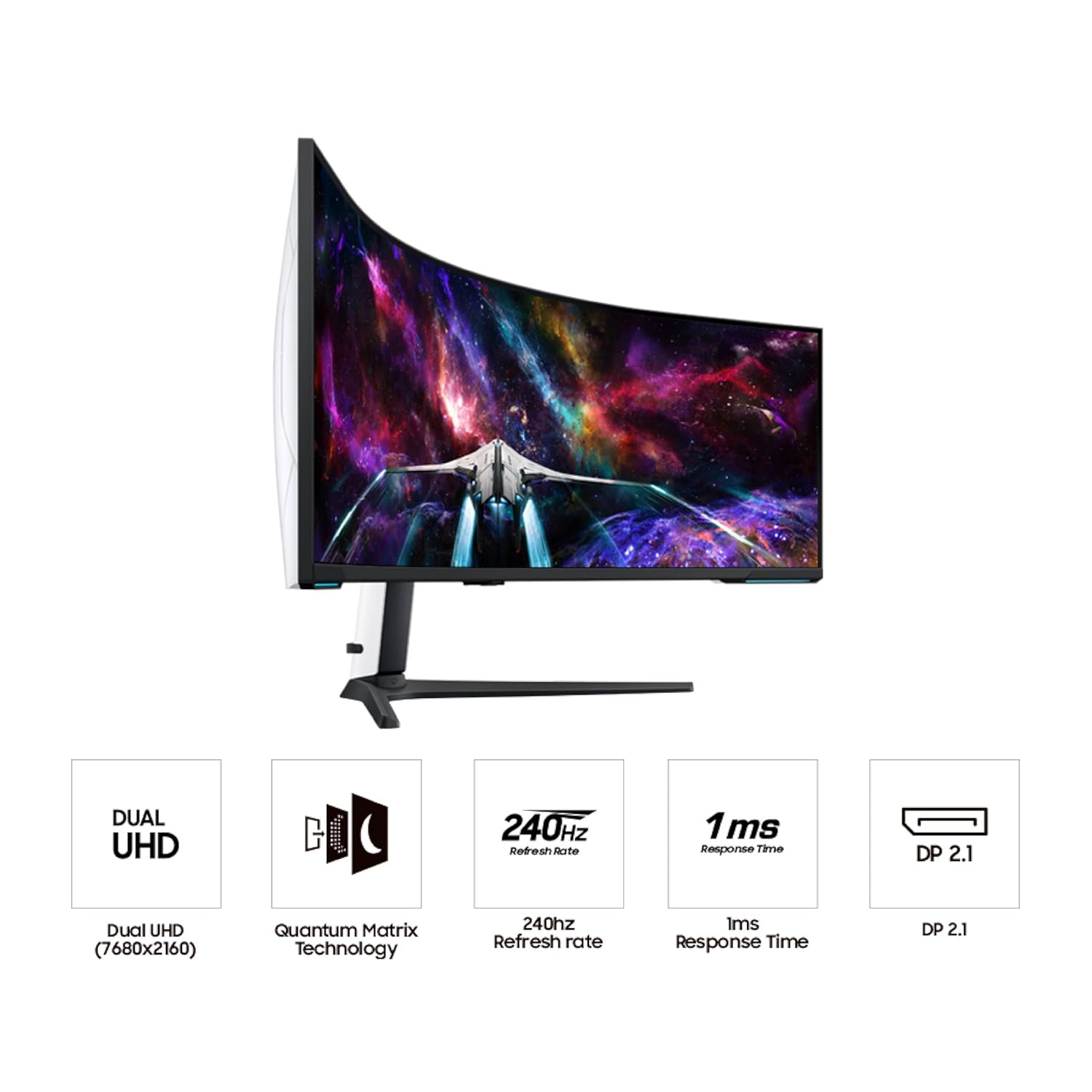
- 240HZ & 1ms (GTG) w/ DP 2.1 INPUT: 240Hz refresh rate reduces lag; 1ms (GTG) response time and minimized ghosting enables you to game with precision; All new DisplayPort 2.1 support provides the same blazing performance in DUHD with variable refresh rates*
- AMD FREESYNC PREMIUM PRO: Hyper-fast action made seamless; Complex and fast-moving game scenes are projected smoothly and stutter-free with AMD FreeSync Premium Pro** to power your competitive edge
- QUANTUM MATRIX TECHNOLOGY: Revolutionary Quantum Matrix Technology w/ Quantum Mini LEDs creates controlled brightness and improved contrast; 2,392 local dimming zones combine w/ the highest 12-bit black levels to create unmatched picture quality
- VESA DISPLAYHDR 1000: 1,000 nit peak brightness and 1,000,000:1 contrast ratio enable enhanced color expression and depth; Spot enemies hiding in dark corners, giving you the competitive edge needed for a win
- YOUR STATION YOUR WAY: Tap into a multitude of input options; DisplayPort 2.1, HDMI 2.1 and USB Hub let you hook up to your favorite devices to easily and conveniently elevate your game with no mess
- CORESYNC & CORE LIGHTING+: With CoreSync technology, the game’s on-screen colors are projected into your real world to further immerse you into the setting; New Core Lighting+ adds amazing color to your set-up for an instant vibe shift
- ERGONOMIC STAND: Find your winning position; Swivel, tilt, and adjust the height until you’re set up for victory; Fully compatible with VESA-standard monitor arms, the screen can be moved effortlessly to your ideal position
- PICTURE-BY-PICTURE: Game, watch, chat—all at the same time; With PBP, view video from two sources simultaneously in their native resolution; Use PIP to resize the second source on up to 25% of the screen
Specification: Samsung 57″ Odyssey Neo G9 (G95NC) Series Dual 4K UHD 1000R Curved Gaming Monitor, 240Hz, 1ms with DisplayPort 2.1, Quantum Mini-LED, DisplayHDR 1000, AMD FreeSync Premium Pro,…
|
348 reviews for Samsung 57″ Odyssey Neo G9 (G95NC) Series Dual 4K UHD 1000R Curved Gaming Monitor, 240Hz, 1ms with DisplayPort 2.1, Quantum Mini-LED, DisplayHDR 1000, AMD FreeSync Premium Pro,…
Show all
Most Helpful
Highest Rating
Lowest Rating
Add a review
Deal of the day

Original price was: $46.99.$43.99Current price is: $43.99.
Hurry Up! Offer ends soon.
days
0
0
hours
0
0
minutes
0
0
seconds
0
0
Top offers





Samsung 57″ Odyssey Neo G9 (G95NC) Series Dual 4K UHD 1000R Curved Gaming Monitor, 240Hz, 1ms with DisplayPort 2.1, Quantum Mini-LED, DisplayHDR 1000, AMD FreeSync Premium Pro,…
$1,499.99
![Warrky HDMI Splitter 4K, Display Mirror Same Screen Only (Not Extend Screen), HDMI Splitter 1 in 2 Out [USB-C Powered, Metal Shell, 3.3 Ft Braided Cable], 1x2 for Dual Monitors,...](https://hybzone.com/wp-content/uploads/2025/08/warrky-hdmi-splitter-4k-display-mirror-same-screen-only-not-extend-screen-.jpg)


Oliver Khan –
If you are looking for a monitor for productivity/working and gaming, this is unequivocally without hyperbole the best monitor that you can buy, and for a great price. I purchased it recently and have nothing about amazing things to say. The size of this thing is so perfect that once you start using it you’ll never want to go back to any other sized monitor. And the resolution and pixel density is absolutely stunning, this thing looks better and more dense than most 27 or 32 inch monitors which is a feat with how big it is. I use mac and although you can only get max 120 HZ, you still can get full native resolution 7680 x 2160 as long as you use DP2.1, which is more than enough for just working which I presume is what most mac users will be doing. The brightness, colors, contrast and HDR on this thing is also amazing everything looks so vibrant and this monitor has an extremely high max brightness. And for work it is SO convenient having literally two 32 inch screens side by side and having this much screen space, you can have so many applications open at once. As long as you have the money to afford this monitor, the desk space to have the monitor on your desk (which is important because the stand takes up a lot of space and this monitor is very heavy so I wouldn’t trust it with an arm), and a rig that can run this at full resolution with good FPS/refresh rate, it is an absolute no brainer in my opinion and is one of my favorite purchases that I’ve ever made. The build quality does feel a bit flimsy I will admit, but honestly it doesn’t matter when the monitor works and performs as well as it does. Just make sure out the box that you calibrate the picture settings, enable HDR, set your Display port/HDMI input to 2.1 (by default it is on 1.4), and tweak the settings to your liking. For me I am using original picture mode, 50 brightness, 50 contrast, 10 sharpness, 22 color, local dimming on HIGH (very important setting), contrast enhancer off, active HDR tone mapping, natural color tone, and native color space settings with the rest of settings on default. Make sure to DISABLE any eye care settings for best quality.
Martin C. –
I’m extremely disappointed, with the product and also with Amazon.
This monitor came defective: the back cover is partially open on the top and it won’t close. This exposes the inner elements to dust and whatnot.
When I attempted to return this item, that is “sold by Amazon.ca”, I have to pay shipping. I’d understand having to pay shipping if I had changed my mind, but to have to pay shipping for a defective item blows my mind.
Oliver Khan –
**purchased for $1900 with my own money** (maybe a double flash sale, $2000 on sale for December, additional $100 off for a few hours one day)
So I’ve used this monitor for about a week, 12-16 hours a day (work during the day and online MBA school at night). Here are my initial thoughts.
1. HDMI was very buggy. When the monitor went to sleep, it would try a few times to wake up. Then, it eventually crashed (rebooted) my M2 Ultra Mac Studio (a great machine).
Switching to a DisplayPort from the USB-C port (back of Mac) has been flawless. (I was hoping to get that port back by using the HDMI, but my previous setup took two USB-C ports, so it’s still a net win of one port for me.
The screen itself is bright and clear (what you would expect) no dead pixels, artifacts, or flaws of any kind. For work and school, 120Hz is more than good enough, as I didn’t see a difference when I switched to 240hz.
2. The curve works great about two feet from my face. Since it’s on a desk against the wall, it goes out a little further than the previous setup, it was doable, and I got back some desk space undernead having one base instead of two previously. The “wrap” around my field of view is definitely worth the extra space but see the next point.
3. The rear lighting and futuristic design were useless since they were against the wall. There’s some extra bulk back there that could have been saved (and money) and made the profile slimmer had they not built all that.
4. I don’t play games much, but Angry Birds was great. Getting the whole screen to show the entire landscape without having to scroll around horizontally was nice. Any side-scrolling games would benefit, assuming they programmed the game to use the extra space.
5. I would have liked them to integrate booming loudspeakers (like the other Samsung gaming monitors) so I don’t have to use external speakers.
6. Also, for this price range, I would have liked to have a high-quality built-in 4K WebCam (even snap-on in the back, but still included) and mic for Zoom calls as well so I can work with two fewer peripherals on the desk.
7. Using the Mac Spaces feature, I can have three windows per space and one space per activity (work, school, reading, file management, photos, etc. It’s a game-changer, for sure. All without a fat bezel in between the middle of the screen. (If Mac fixed the full-screen function to allow for three full-screen apps instead of two, that would be even better) Multi-page docs or wide spreadsheets are a huge benefactor of this super wide screen.
Overall, this was a great purchase for me. I last bought monitors when the Dell 4K ultrashare UP3216Q came out (8 years ago, and they still work great, BTW) and spent $2000 each, so paying $1900 for this monitor was a great deal.
Evan Shaw –
This monitor is amazing! It replaced my dual screen setup, and while in terms of screen space I have neither gained, nor lost, it does have flexibility to split my screen into 3 or 4, which is very handy. Though I believe it is marketed as a gaming monitor, I use this monitor almost entirely for productivity, and a little bit of media.
The curvature is great for me, no eye strain and I do not have to swivel my neck around which is great as I have some neck issues. Text, and I work with text all day long plus some, is very clear.
The instructions for assembly were clear, and while I could do most myself, I did need to get someone to help me actually lift it out of box and onto my desk. It is heavy! I have a sit-stand add-on on my desk and this monitor is too heavy for the sit-stand to “lift” (maybe I can adjust with settings though I suspect I exceed the weight limit). A sit-stand desk may be better in that case. Also be prepared to have a lot of room to set up and breakdown materials, as this is a big monitor in a big box with a lot of protective wrapping.
I am so pleased I went with this size. It was expensive ($2,199 at time I purchased, though $1,998 at the time I am writing this review) however I have zero regrets. It was well worth it as it has really boosted my productivity, and even made my day job more pleasurable.
I’d recommend this even for the non-gamers amongst us who are more interested in productivity uses. If you work in a relatively boring office environment though, be prepared for people to ask when your space suit is coming back from the dry cleaners. The rear of the monitor definitely has a futuristic look.
Silvia –
Ridiculous screen. End game and then some. LOVE MINE! I use it with a Mac Studio M2, full resolution.
Silvia –
Update : The screen sometimes does not bring u pthe menu anymore. I need t ounplug it and plug it back in, then when I press the menu button the menu appears. Its not a hardware failure as resetting the device makes the menu buttons 100% usable again. Shame as I knew the menu buttons were terrible when I bought it, and not they are the source of the only problem with it. Why not just make decent buttons ? And why not support a remote control ? It would have cost an extra 2$.
I used to have 2x 4K 28 inch monitors and eventually decided to get rid of the large black dividing line down the middle and use a single monitor. So I opted for the 49 inch Samsung Neo G9, with a resolution of 5120×1440 and 240MHz, which I loved. I also got used to the curved screen very quickly, and find it so much easier to work with multiple windows open, also play games is very cool, but dropping from a 4k resolution down to just 1440 vertical resolution did make my games look less clear and less defined. Eventually I saw this screen that has the highest resolution I would ever want to go to (for a screen thats this close to my eyes) 7680 x 2160 Pixels puts the highest definition of games back on and the colours and resolution are simply amazing. I love this monitor, its huge, as big as I would ever want to go, and has everything I need (picture in picture, 240 MHz, 1ms, 1000 NITS etc etc. The only thing I would have liked more was if they just replaced the terrible menu buttons, and added a $2 remote control. Such a shame it doesn’t have a decent menu button system.
Rachel –
I’ve had this monitor for 3 months now and I am very pleased. I really have no significant complaints. The only down side so far for me is that my video card supports a max of 120hz at 7680×2160. That’s no fault of the monitor but rather a limitation of my RTX 4080 Super. Beyond that, there are only positives. Most of my time is not spent gaming so it’s important that the monitor does well at non-gaming tasks, which is really does. Text is beautifully crisp, colors are vivid – just a pleasure to use every day. Gaming performance is excellent – best screen I’ve had to date. Just beautiful.
Overall, a monitor I can easily recommend based on my experience to date. Well worth the money.
GA –
It looks great with games and provides a massive productivity display. As others have mentioned, it is a bit of a workout for your neck when spanning the display during regular use (owl neck upgrade required?) but it is awesome for games that support it such as Baldur’s Gate 3 (the only game I’ve tried it with so far).
My only frustration has been the fact that it goes to sleep during BIOS POST, which makes it frustratingly hard to enter BIOS settings. I plugged in a cheap portable monitor as a secondary display to solve that problem.
JD Lien –
Wow! This monitor is impressive in size and capability and is a productivity (and gaming) powerhouse! But it has several quirks, and getting it running the way I wanted was far from straightforward. Let me tell you about my frustrating but wonderful experience using the 57″ Odyssey Neo G9.
Pros:
• Incredible amount of screen real estate
• Flexible PBP options allow you to use it as two or three displays
• Extremely bright image
• High refresh rates
• Nice lighting features
• Good value compared to buying two comparable 32″ 4K displays
• KVM feature helps when connecting to two computers
Cons:
• Extremely frustrating to get set up on macOS, especially with resolution scaling
• Unreliable at connecting to my MacBook Pro when I wake it
• Local dimming is less impressive than I hoped
• Very picky about what cables work with it
• Lacking USB-C connectivity to a computer
• Only a single DisplayPort connection when three would be useful
• Only two USB ports (and USB-A at that)
I’m a huge fan of expansive multi-monitor setups, having used triple 27″ 5K displays for years, but I needed something that wasn’t quite so wide (so I could fit big speakers beside my desk). However, I still wanted the sort of screen real estate I’m used to. This monitor appeared to offer an excellent solution, so I took the plunge and ordered it. A massive box arrived at my door the very next day.
For context, while this monitor is marketed as a “gaming” monitor, I’m not much of a gamer and rarely play video games these days. I’m a web developer, and I find having multiple displays extremely helpful for doing my work. I’m also a Mac user and only generally use Windows through virtualization (with Parallels). So, I’ll be reviewing this monitor in the context of a display for productivity and work applications on a Mac.
I use an M2 Max MacBook Pro, which is relevant for how I use this display, as only the Max variants can connect four external displays, while the M2 Pro can use two external displays.
The unboxing experience of this display was something. This is a beast. I’m an average-sized guy and had an okay time attaching the stand and lugging it out of the box and onto my desk, but if you can get someone to help you, you should. For some reason, the instructions strongly imply you should attach cables before you set it up, but I have no idea why; it’s quite easy to access the cables on the back as long as you don’t put it right in a corner or put the thin plastic cover on. About that cover, you will want to leave that off until you are very sure you are happy with how you have this display set up because I had to try nearly every cabling configuration possible with this display before I found a setup that worked well for me.
At first, I simply plugged in a DisplayPort cable to my UGreen ThunderBolt 4 dock, and it worked great, giving me the full 7,680×2160 pixels at 120 Hz. (It appears Macs never want to do more than 120 Hz, and I’m fine with that). There were, however, two big problems with this scenario:
1. Window management is awkward with a massive 32:9 display. It’s handy to “snap” windows to different monitors, but you lose some of that ability with one giant monitor and have to spend a lot of time dragging windows into comfortable positions. Also, macOS shows its menu in the far top-left corner, which is a little awkward to use; your neck will not appreciate you frequently looking at the far corners of this display.
2. Unlike Windows, with its fairly straightforward 1.25x/1.5x scaling, macOS scaling works by essentially downsampling a variety of “virtual” desktop resolutions to the resolution of the native display. Although “4K at 32-inches” (which this display is effectively two of, side by side) is a decent pixel density, it’s an awkward resolution on a Mac. I could choose between running at the native resolution with no scaling, where everything is very tiny at 1x, or everything is very large at 2x. The latter may be great if you have quite poor eyesight, but neither made me happy.
To solve the second issue, macOS typically allows you to set the “virtual desktop” resolution of a 4K display to either 5K (5120×2880 or 2560×1440@2x) or 6K (6016×3384 or 3008×1692@2x). The image is then scaled in hardware to the native 4K resolution, which looks surprisingly good, albeit not quite as crisp as a true 5K or 6K display like the Pro Display XDR would.
All this said, out of the box, I was not getting these scaled options, and I briefly tried to use a utility called BetterDisplay to add the desired resolutions, but it would not cooperate. I am not sure why, but it’s possible that creating a resolution this large is problematic because the display hardware simply can’t drive it.
I ultimately realized that, even with the appropriate scaling, I probably wouldn’t enjoy using this display as one extremely wide screen, so I decided that I’d try some of the “Picture by Picture” modes.
Picture by Picture or PBP is a very cool feature of this monitor that allows you to configure the monitor as two or three separate displays and allocate the sections in different ways. For instance, you can run this display as two 4K displays, a 4K display in the center with a half-width display on each side, or three equal 2,560×2,160 screens. PBP is a wonderful feature that offers a great deal of flexibility, but this also comes with the significant caveat that you’ll need to physically plug your computer(s) into all these “logical monitors” with separate ports. If you elect to use a three-screen mode, you’ll need a computer capable of triple-display output.
I chose to use the 4K in the middle, half-width monitors at the sides layout, which is perfect for getting a “normal” sized, 16:9 display in the middle that works well to watch video while having side screens that are great for email, documentation, documents, etc. This is an excellent productivity setup that gives you a lot of screen real estate with no bezels in between its logical “displays.”
Unfortunately, the path to getting everything working well was not easy. First, I wanted to run the displays as 6K (and half 6K for the sides), so that the UI was at the appropriate size. This was straightforward for the center display, but the side displays, at 1,920×2,160, were not offering me the appropriate options for this. I ended up messing around with various utilities to try to see if I could manually add the virtual resolution I wanted, and I had an extremely difficult time doing this. I was able to get one side to work with SwitchResX, but not the other. Eventually, I determined that one of my cables or connections was messing something up, and I bought a new USB-C to HDMI adapter to connect this display.
Finally, once I thought I had everything set up the way I wanted, I couldn’t reliably connect to all my displays. I’ll note that in addition to using the Neo G9 as three displays, I have another 4K display on top that I was connecting, so I’m really pushing the limits of what my poor MacBook Pro can do! But what I was finding is that three out of four of my displays would connect when my computer woke up, and I’d have to fight with the connections to get them all to connect. What seems to work most reliably is to unplug the HDMI to USB-C adapter from the left Thunderbolt port on my laptop and plug it in again. Usually, that would make everything connect (with, at best, two of three of the displays at 120Hz, which could be a limitation of my Mac). It’s super annoying that I have to do this almost every time I sit down at my computer if the displays have been off.
I believe this might be a problem with this display, as I have heard other people report an issue with this display that makes it unreliable at establishing a connection. Let us hope and pray a firmware update can improve this!
If you’re planning to get fancy with how you set up this display, you’ll want to make sure you have high-quality HDMI and DisplayPort cables or adapters that support the highest capabilities, as this monitor is picky about what capabilities it will allow with some cables or adapters. You do get one quality HDMI cable and one DisplayPort cable in the box, but you may want more, and you may need different cables if you need to connect to USB-C ports. At any rate, with the saga of my connection and configuration to this display behind us, I’ll get to some of the other noteworthy properties of this monitor.
First, I feel that, for a display of this size and capability, it’s a shame that the connectivity options are so limited. A display like this should probably offer Thunderbolt or USB-C as an option, which would allow connecting the internal USB ports, of which you get a piddly two. I don’t think I’ve ever seen a monitor with a USB hub that only offers two ports, so that’s lame. One neat feature these ports do afford, though, is for you to use the display like a KVM. You can plug your keyboard and mouse into those ports, and they will automatically switch between computers as you switch the display. This is nice if you have separate work and gaming PCs, for example.
Additionally, you get three HDMI ports but only one DisplayPort, which is capable of DP 2.1 (although it’s set to 1.4 by default, so you’ll have to manually enable that in the OSD menu if your computer is capable of DP 2.1). DisplayPort is generally the superior connection type for computers, so why Samsung would hamstring this display by only including one DP connection is a mystery to me. You can always convert DP to HDMI with an active cable, and I have one—but holy smokes, that adapter gets hot. Also, I’ve not found HDMI to be as reliable as DisplayPort with Thunderbolt 3/4 Macs.
This is all something that can be worked around, except that I noticed one very annoying thing—I was having better luck connecting using 1x DP and 2x HDMI connections than using 3x HDMI connections. However, the DisplayPort signal and HDMI signals look quite different. The colors through DisplayPort were significantly bluer, and the HDMI had much warmer colors. Not to mention that you don’t get any ability to adjust colors through the OSD menu if you’re using PBP mode, for some reason. All this to say, if you do color-sensitive work, you will want to be cognizant of this and will likely want to try connecting all displays with HDMI and calibrating them accordingly. I haven’t yet found a reliable way to get the DP and HDMI inputs color-matched.
On a more positive note, the brightness of this display is next-level, with retina-searing capabilities. Samsung claims it does 1,000 nit peak HDR brightness, and I believe it. On their product page, it also lists this as a 420 cd/m2 (I guess if you’re not using the HDR capabilities), but at least with my configuration, it appears capable of much more than 420 nits just in the regular desktop UI. On my Mac, I use the excellent Lunar app to control the brightness with my Mac’s keyboard. There are a couple of quirks to doing this, however: First, while most monitors go from 0-100, this goes from 0-50, so the last half of the adjustments do nothing, and the step between the first half of the scale is big. Also, Lunar tries to adjust all three of the displays at the same time, which leads to some glitchy behavior. Fortunately, these issues are solvable by limiting the max brightness to 50, locking all but one display’s brightness, and changing the adjustment increment to a lower number than the default of 6%. With that, I can easily tweak the brightness using my keyboard based on what I’m looking at or the room brightness, which is very nice.
When it comes to contrast, this mini-LED backlit monitor offers 2,392 dimming zones, which sounds impressive, but it’s not quite enough for a display of this size. While the monitor is capable of impressive-looking contrast on completely black screens, you’ll also notice considerable blooming on dark screens with small bright regions. Also, the local dimming doesn’t seem to kick in significantly until the brightness gets quite low. Unfortunately, this isn’t the best local-dimming implementation I’ve seen, and it doesn’t hold a candle to the excellent performance of the mini-LED MacBook Pro displays.
A feature of this monitor I’m not fond of is that it has a pretty strong antiglare film. This treatment is probably important on a curved display, as it’ll reflect any light sources behind you, but in an environment where you can control your lighting and ensure there is no light behind you, an AG coating adds a “sparkle” to the display, reduces contrast, desaturates color, and generally makes the display worse. I wish Samsung would offer more of their displays with a glossy option.
I find the vertical off-axis viewing angles fairly narrow, especially with shades of gray, so it’s very important to get this display angled towards you and at the correct height, or grays and colors will look washed out. It’s too bad the viewing angles of this monitor aren’t the most impressive, but they are sufficient if you can get the display set up and ensure you sit in the sweet spot.
About that sweet spot, you can’t forget that one of the defining characteristics of this display is the fairly aggressive 1000R curve. I’ve seen a lot of debate about the merits and drawbacks of curved screens. Remember the curved TV fad? That was dumb because TV viewers rarely sit in the sweet spot. But for a monitor like this, you definitely will appreciate the curve as long as you’re sitting in the right place.
1000R means that this monitor is a segment of a circle with a radius of 1000mm, which means you will want to sit with your eyes about 1M from the display, which I think is a reasonable and comfortable distance. Without this curve, the edges of the screen would be at quite an awkward angle and lead to very washed-out or suboptimal viewing. Even with a curve this aggressive, my eyes being a little weak, I like to sit a bit closer than 1M from the display, so I’d almost like a slightly tighter curve, like 900R, but overall, I give a thumbs up on the curve. It significantly increases the ergonomics of a display at a typical viewing distance, but you may not appreciate the curve if you use this display for meetings or sit really far from your screen.
Finally, there’s one neat feature I’d like to point out, and that’s the “Infinity Core Lighting”, which is, I guess, the sort of thing you must add to a product to sell it to gamers these days. Basically, it’s a big colored light around the point the monitor stand connects, with two thin accent strips at the front. Even though I despise the “RGB everywhere all the time” aesthetic, the implementation here is thoughtful, and you can configure this light to work in a variety of ways with many color options. I enjoy setting it to a static light that gives a nice ambient glow around the back of the monitor, making it a bit easier to plug in cables there.
In conclusion, while it’s unfortunate that this display offers too little connectivity and a strong AG coating I don’t like, this is a really cool monitor. I mainly wish Samsung would fix the reliability issues with this monitor connecting to computers—it is insane that literally every time I sit down at my desk, I have to get up again and unplug/replug a cable to get my monitors to connect correctly! But when everything is set up the way I want it, I really enjoy this monitor, with its bright, expansive display, good pixel density, and very useful PBP capabilities. It’s an excellent productivity monitor, although it was (and remains) tricky to get it working as I wanted. I think that, for the money, it offers incredible capabilities and is a unique display that works really well for my particular needs as a multi-monitor enthusiast.
Angela –
Great Monitor
Angela –
This monitor is amazing! It replaced my dual screen setup, and while in terms of screen space I have neither gained, nor lost, it does have flexibility to split my screen into 3 or 4, which is very handy. Though I believe it is marketed as a gaming monitor, I use this monitor almost entirely for productivity, and a little bit of media.
The curvature is great for me, no eye strain and I do not have to swivel my neck around which is great as I have some neck issues. Text, and I work with text all day long plus some, is very clear.
The instructions for assembly were clear, and while I could do most myself, I did need to get someone to help me actually lift it out of box and onto my desk. It is heavy! I have a sit-stand add-on on my desk and this monitor is too heavy for the sit-stand to “lift” (maybe I can adjust with settings though I suspect I exceed the weight limit). A sit-stand desk may be better in that case. Also be prepared to have a lot of room to set up and breakdown materials, as this is a big monitor in a big box with a lot of protective wrapping.
I am so pleased I went with this size. It was expensive ($2,199 at time I purchased, though $1,998 at the time I am writing this review) however I have zero regrets. It was well worth it as it has really boosted my productivity, and even made my day job more pleasurable.
I’d recommend this even for the non-gamers amongst us who are more interested in productivity uses. If you work in a relatively boring office environment though, be prepared for people to ask when your space suit is coming back from the dry cleaners. The rear of the monitor definitely has a futuristic look.
Amazon Customer –
The screen is not circular. It has a very aggressive curve in the middle, but then the curve tapers off and the panel becomes completely flat on the sides. This makes it very difficult for my eyes and brain to get used to it, and can easily trigger dizziness and headaches. Other wide screen monitors have consistent curve throughout the whole screen width, which makes it much easier to get used to it over a few days.
It has a poor quality VA panel with a very pronounced color shift depending on the angle you look at it. The curve in the middle helps with this, but the flat parts of the panel on the sides will show different color saturation than the middle. Also, the top part of the panel has nice and rich colors, while the bottom part of the panel has washed out colors. This is because the screen height causes your eyes to look at the top and bottom of the screen at different angles.
It is NOT officially on Nvidia’s G-Sync compatible list, and it shows. There is a lot of flickering/flashing with G-sync engaged in the native resolution of 7680×2180, making it unusable. Once you lower the resolution to the regular 4K, the flickering/flashing goes away.
Speaking of the regular 4K resolution of 3840×2180, it does a pretty poor job of scaling the screen automatically to 16:9. In many cases, it just stretches the screen to fill the whole width of the panel. It has an option to force aspect ratio and size of the screen, but it maxes out at 27-inch equivalent, which results in black bars on top and bottom of the screen.
Waking up from sleep is a big issue. I heard this mentioned in reviews, but I didn’t really appreciate the magnitude of this problem. You have to either restart your computer (and risk losing data in your open applications) or disconnect and then re-connect the cable from your video card (and risk damaging your video card) multiple times a day every time your monitor goes to sleep. After 4 or 5 firmware upgrades this problem still persist, so it looks like it is some sort of hardware issue that cannot be fixed in firmware. This monitor has to be turned on all the time your computer is on, and you need to manually power it down and up when you stop and start your computer.
Martin C. –
I’ve had this monitor for 3 months now and I am very pleased. I really have no significant complaints. The only down side so far for me is that my video card supports a max of 120hz at 7680×2160. That’s no fault of the monitor but rather a limitation of my RTX 4080 Super. Beyond that, there are only positives. Most of my time is not spent gaming so it’s important that the monitor does well at non-gaming tasks, which is really does. Text is beautifully crisp, colors are vivid – just a pleasure to use every day. Gaming performance is excellent – best screen I’ve had to date. Just beautiful.
Overall, a monitor I can easily recommend based on my experience to date. Well worth the money.
Braelyn –
I took a chance on this monitor hoping it would work well with my setup, and I’m very glad I did. I don’t game at all. This is used 100% for business and productivity.
My setup:
• MacBook Pro M2 Max
• 32GB RAM, 1TB SSD
• macOS Tahoe 26.2
• OWC Thunderbolt Dock
• Apple wireless keyboard with Touch ID and Apple Mouse
Connection-wise, you can use HDMI, but I strongly recommend DisplayPort to USB-C. In my case, I already had the OWC Thunderbolt dock from a previous setup, so this was an easy upgrade. I only needed to buy a DisplayPort-to-USB-C cable. The result is exactly what I wanted: one cable to the MacBook, running in clamshell mode at all times.
The monitor drives full native resolution at 120Hz, which is perfect for macOS. Everything is smooth, sharp, and stable.
I did need to update the firmware. Fair warning: the firmware update failed a few times (three, to be exact). After resetting the monitor and trying again, it succeeded on the fourth attempt. My advice: be persistent, once it updates, everything works as expected.
As for daily use: this monitor is awesome. The amount of screen real estate completely changes how you work. I can keep multiple applications and windows visible at the same time without constantly switching between desktops or displays. That alone has been a huge productivity boost.
The image quality is excellent. Crisp text, very bright, and incredibly immersive. For serious work, this feels far more efficient than running dual or even triple monitors.
Bottom line: if you’re a Mac user looking for a high-end productivity display and are willing to spend a little time dialing it in, this monitor is absolutely worth it. Once set up, it’s rock solid and a joy to use.
Braelyn –
I can’t help but love this monitor. There are few flaws but nothing that detracts from the experience when using this beast for work or play. My work laptop is using integrated intel graphics, and has no problem running the full resolution albeit at a refresh rate of 60Hz. My gaming PC, equipped with a Nvidia 4080 runs full resolution at 120Hz.
A few examples of gaming performance on the 4080 running max resolution:
Forza Horizon 5 locked at 60 fps no problem.
Final Fantasy XIV variable from 60 to 85 fps. Typically around 80Hz.
Games that support the ultrawide display are gorgeous. Having so much displayed in your field of view really helps with emersion in the game.
The quality of the screen really shines. Deep blacks, with little halo effect. Color reproduction is really good. Brightness can be blinding, I typically have brightness set to about 15 out of 50. Text is sharp.
For work, having this much real estate to play with is great. I went from running 3 27″ monitors to this single setup. No breaks for bezels, and being able to throw windows around anywhere is a game changer. When working with large datasets, or those horrible spreadsheets that are 50 columns wide, max the window and see everything at once.
I see the other reviews where people are experiencing flickering, strange gray lines, or bad pixels, but luckily I have had none of those issues.
For the bad:
The 3′ Display Port cable that comes in the box. This is unacceptable as half that length is just getting it from the input on the monitor through the cable management, so you only have maybe 18″ to play with getting it to your device. At this price point, Samsung could do better.
Only 1 display port on the monitor. HDMI works fine, but I would have liked at least 2 display ports. Not a deal breaker, but a “would have been nice” item.
Firmware really needs some work. When waking the computer from sleep mode, the monitor does not come off standby mode automatically unless you have Auto Source Switch+ turned on. But if the work laptop wakes while I am in the middle of a game, I really don’t want the monitor to switch automatically to the new input, so I like to keep that off.
Oliver Khan –
I took a chance on this monitor hoping it would work well with my setup, and I’m very glad I did. I don’t game at all. This is used 100% for business and productivity.
My setup:
• MacBook Pro M2 Max
• 32GB RAM, 1TB SSD
• macOS Tahoe 26.2
• OWC Thunderbolt Dock
• Apple wireless keyboard with Touch ID and Apple Mouse
Connection-wise, you can use HDMI, but I strongly recommend DisplayPort to USB-C. In my case, I already had the OWC Thunderbolt dock from a previous setup, so this was an easy upgrade. I only needed to buy a DisplayPort-to-USB-C cable. The result is exactly what I wanted: one cable to the MacBook, running in clamshell mode at all times.
The monitor drives full native resolution at 120Hz, which is perfect for macOS. Everything is smooth, sharp, and stable.
I did need to update the firmware. Fair warning: the firmware update failed a few times (three, to be exact). After resetting the monitor and trying again, it succeeded on the fourth attempt. My advice: be persistent, once it updates, everything works as expected.
As for daily use: this monitor is awesome. The amount of screen real estate completely changes how you work. I can keep multiple applications and windows visible at the same time without constantly switching between desktops or displays. That alone has been a huge productivity boost.
The image quality is excellent. Crisp text, very bright, and incredibly immersive. For serious work, this feels far more efficient than running dual or even triple monitors.
Bottom line: if you’re a Mac user looking for a high-end productivity display and are willing to spend a little time dialing it in, this monitor is absolutely worth it. Once set up, it’s rock solid and a joy to use.
RK –
I’ve had this monitor for 3 months now and I am very pleased. I really have no significant complaints. The only down side so far for me is that my video card supports a max of 120hz at 7680×2160. That’s no fault of the monitor but rather a limitation of my RTX 4080 Super. Beyond that, there are only positives. Most of my time is not spent gaming so it’s important that the monitor does well at non-gaming tasks, which is really does. Text is beautifully crisp, colors are vivid – just a pleasure to use every day. Gaming performance is excellent – best screen I’ve had to date. Just beautiful.
Overall, a monitor I can easily recommend based on my experience to date. Well worth the money.
EatSleepAmzn –
The Samsung Odyssey NEO G9 is an absolute powerhouse when it comes to immersive gaming and productivity. The 49-inch curved display with Quantum Mini LED technology delivers incredible picture quality, with deep blacks, vibrant colors, and exceptional contrast. Whether you’re gaming or working, the 5120×1440 resolution provides crystal-clear visuals, and the 240Hz refresh rate ensures smooth, responsive gameplay.
One of the standout features is the HDR2000, which makes everything look incredibly lifelike. The G-Sync and FreeSync Premium Pro support eliminate screen tearing, making it perfect for high-intensity gaming sessions. The ultra-wide screen is like having two monitors in one, which is great for multitasking without the need for multiple displays.
However, there’s one big drawback: its size. The monitor is so large that it overwhelms my 23-inch deep desk, making it difficult to position comfortably. If you don’t have enough desk space, you might find it challenging to fit this beast into your setup.
Despite this, if you have the room and budget, the Odyssey NEO G9 is a top-tier monitor that delivers an unrivaled experience in both gaming and productivity. Just be sure to measure your desk before making the investment!
Amazon Customer –
It looks great with games and provides a massive productivity display. As others have mentioned, it is a bit of a workout for your neck when spanning the display during regular use (owl neck upgrade required?) but it is awesome for games that support it such as Baldur’s Gate 3 (the only game I’ve tried it with so far).
My only frustration has been the fact that it goes to sleep during BIOS POST, which makes it frustratingly hard to enter BIOS settings. I plugged in a cheap portable monitor as a secondary display to solve that problem.
Amazon Customer –
Wow! This monitor is impressive in size and capability and is a productivity (and gaming) powerhouse! But it has several quirks, and getting it running the way I wanted was far from straightforward. Let me tell you about my frustrating but wonderful experience using the 57″ Odyssey Neo G9.
Pros:
• Incredible amount of screen real estate
• Flexible PBP options allow you to use it as two or three displays
• Extremely bright image
• High refresh rates
• Nice lighting features
• Good value compared to buying two comparable 32″ 4K displays
• KVM feature helps when connecting to two computers
Cons:
• Extremely frustrating to get set up on macOS, especially with resolution scaling
• Unreliable at connecting to my MacBook Pro when I wake it
• Local dimming is less impressive than I hoped
• Very picky about what cables work with it
• Lacking USB-C connectivity to a computer
• Only a single DisplayPort connection when three would be useful
• Only two USB ports (and USB-A at that)
I’m a huge fan of expansive multi-monitor setups, having used triple 27″ 5K displays for years, but I needed something that wasn’t quite so wide (so I could fit big speakers beside my desk). However, I still wanted the sort of screen real estate I’m used to. This monitor appeared to offer an excellent solution, so I took the plunge and ordered it. A massive box arrived at my door the very next day.
For context, while this monitor is marketed as a “gaming” monitor, I’m not much of a gamer and rarely play video games these days. I’m a web developer, and I find having multiple displays extremely helpful for doing my work. I’m also a Mac user and only generally use Windows through virtualization (with Parallels). So, I’ll be reviewing this monitor in the context of a display for productivity and work applications on a Mac.
I use an M2 Max MacBook Pro, which is relevant for how I use this display, as only the Max variants can connect four external displays, while the M2 Pro can use two external displays.
The unboxing experience of this display was something. This is a beast. I’m an average-sized guy and had an okay time attaching the stand and lugging it out of the box and onto my desk, but if you can get someone to help you, you should. For some reason, the instructions strongly imply you should attach cables before you set it up, but I have no idea why; it’s quite easy to access the cables on the back as long as you don’t put it right in a corner or put the thin plastic cover on. About that cover, you will want to leave that off until you are very sure you are happy with how you have this display set up because I had to try nearly every cabling configuration possible with this display before I found a setup that worked well for me.
At first, I simply plugged in a DisplayPort cable to my UGreen ThunderBolt 4 dock, and it worked great, giving me the full 7,680×2160 pixels at 120 Hz. (It appears Macs never want to do more than 120 Hz, and I’m fine with that). There were, however, two big problems with this scenario:
1. Window management is awkward with a massive 32:9 display. It’s handy to “snap” windows to different monitors, but you lose some of that ability with one giant monitor and have to spend a lot of time dragging windows into comfortable positions. Also, macOS shows its menu in the far top-left corner, which is a little awkward to use; your neck will not appreciate you frequently looking at the far corners of this display.
2. Unlike Windows, with its fairly straightforward 1.25x/1.5x scaling, macOS scaling works by essentially downsampling a variety of “virtual” desktop resolutions to the resolution of the native display. Although “4K at 32-inches” (which this display is effectively two of, side by side) is a decent pixel density, it’s an awkward resolution on a Mac. I could choose between running at the native resolution with no scaling, where everything is very tiny at 1x, or everything is very large at 2x. The latter may be great if you have quite poor eyesight, but neither made me happy.
To solve the second issue, macOS typically allows you to set the “virtual desktop” resolution of a 4K display to either 5K (5120×2880 or 2560×1440@2x) or 6K (6016×3384 or 3008×1692@2x). The image is then scaled in hardware to the native 4K resolution, which looks surprisingly good, albeit not quite as crisp as a true 5K or 6K display like the Pro Display XDR would.
All this said, out of the box, I was not getting these scaled options, and I briefly tried to use a utility called BetterDisplay to add the desired resolutions, but it would not cooperate. I am not sure why, but it’s possible that creating a resolution this large is problematic because the display hardware simply can’t drive it.
I ultimately realized that, even with the appropriate scaling, I probably wouldn’t enjoy using this display as one extremely wide screen, so I decided that I’d try some of the “Picture by Picture” modes.
Picture by Picture or PBP is a very cool feature of this monitor that allows you to configure the monitor as two or three separate displays and allocate the sections in different ways. For instance, you can run this display as two 4K displays, a 4K display in the center with a half-width display on each side, or three equal 2,560×2,160 screens. PBP is a wonderful feature that offers a great deal of flexibility, but this also comes with the significant caveat that you’ll need to physically plug your computer(s) into all these “logical monitors” with separate ports. If you elect to use a three-screen mode, you’ll need a computer capable of triple-display output.
I chose to use the 4K in the middle, half-width monitors at the sides layout, which is perfect for getting a “normal” sized, 16:9 display in the middle that works well to watch video while having side screens that are great for email, documentation, documents, etc. This is an excellent productivity setup that gives you a lot of screen real estate with no bezels in between its logical “displays.”
Unfortunately, the path to getting everything working well was not easy. First, I wanted to run the displays as 6K (and half 6K for the sides), so that the UI was at the appropriate size. This was straightforward for the center display, but the side displays, at 1,920×2,160, were not offering me the appropriate options for this. I ended up messing around with various utilities to try to see if I could manually add the virtual resolution I wanted, and I had an extremely difficult time doing this. I was able to get one side to work with SwitchResX, but not the other. Eventually, I determined that one of my cables or connections was messing something up, and I bought a new USB-C to HDMI adapter to connect this display.
Finally, once I thought I had everything set up the way I wanted, I couldn’t reliably connect to all my displays. I’ll note that in addition to using the Neo G9 as three displays, I have another 4K display on top that I was connecting, so I’m really pushing the limits of what my poor MacBook Pro can do! But what I was finding is that three out of four of my displays would connect when my computer woke up, and I’d have to fight with the connections to get them all to connect. What seems to work most reliably is to unplug the HDMI to USB-C adapter from the left Thunderbolt port on my laptop and plug it in again. Usually, that would make everything connect (with, at best, two of three of the displays at 120Hz, which could be a limitation of my Mac). It’s super annoying that I have to do this almost every time I sit down at my computer if the displays have been off.
I believe this might be a problem with this display, as I have heard other people report an issue with this display that makes it unreliable at establishing a connection. Let us hope and pray a firmware update can improve this!
If you’re planning to get fancy with how you set up this display, you’ll want to make sure you have high-quality HDMI and DisplayPort cables or adapters that support the highest capabilities, as this monitor is picky about what capabilities it will allow with some cables or adapters. You do get one quality HDMI cable and one DisplayPort cable in the box, but you may want more, and you may need different cables if you need to connect to USB-C ports. At any rate, with the saga of my connection and configuration to this display behind us, I’ll get to some of the other noteworthy properties of this monitor.
First, I feel that, for a display of this size and capability, it’s a shame that the connectivity options are so limited. A display like this should probably offer Thunderbolt or USB-C as an option, which would allow connecting the internal USB ports, of which you get a piddly two. I don’t think I’ve ever seen a monitor with a USB hub that only offers two ports, so that’s lame. One neat feature these ports do afford, though, is for you to use the display like a KVM. You can plug your keyboard and mouse into those ports, and they will automatically switch between computers as you switch the display. This is nice if you have separate work and gaming PCs, for example.
Additionally, you get three HDMI ports but only one DisplayPort, which is capable of DP 2.1 (although it’s set to 1.4 by default, so you’ll have to manually enable that in the OSD menu if your computer is capable of DP 2.1). DisplayPort is generally the superior connection type for computers, so why Samsung would hamstring this display by only including one DP connection is a mystery to me. You can always convert DP to HDMI with an active cable, and I have one—but holy smokes, that adapter gets hot. Also, I’ve not found HDMI to be as reliable as DisplayPort with Thunderbolt 3/4 Macs.
This is all something that can be worked around, except that I noticed one very annoying thing—I was having better luck connecting using 1x DP and 2x HDMI connections than using 3x HDMI connections. However, the DisplayPort signal and HDMI signals look quite different. The colors through DisplayPort were significantly bluer, and the HDMI had much warmer colors. Not to mention that you don’t get any ability to adjust colors through the OSD menu if you’re using PBP mode, for some reason. All this to say, if you do color-sensitive work, you will want to be cognizant of this and will likely want to try connecting all displays with HDMI and calibrating them accordingly. I haven’t yet found a reliable way to get the DP and HDMI inputs color-matched.
On a more positive note, the brightness of this display is next-level, with retina-searing capabilities. Samsung claims it does 1,000 nit peak HDR brightness, and I believe it. On their product page, it also lists this as a 420 cd/m2 (I guess if you’re not using the HDR capabilities), but at least with my configuration, it appears capable of much more than 420 nits just in the regular desktop UI. On my Mac, I use the excellent Lunar app to control the brightness with my Mac’s keyboard. There are a couple of quirks to doing this, however: First, while most monitors go from 0-100, this goes from 0-50, so the last half of the adjustments do nothing, and the step between the first half of the scale is big. Also, Lunar tries to adjust all three of the displays at the same time, which leads to some glitchy behavior. Fortunately, these issues are solvable by limiting the max brightness to 50, locking all but one display’s brightness, and changing the adjustment increment to a lower number than the default of 6%. With that, I can easily tweak the brightness using my keyboard based on what I’m looking at or the room brightness, which is very nice.
When it comes to contrast, this mini-LED backlit monitor offers 2,392 dimming zones, which sounds impressive, but it’s not quite enough for a display of this size. While the monitor is capable of impressive-looking contrast on completely black screens, you’ll also notice considerable blooming on dark screens with small bright regions. Also, the local dimming doesn’t seem to kick in significantly until the brightness gets quite low. Unfortunately, this isn’t the best local-dimming implementation I’ve seen, and it doesn’t hold a candle to the excellent performance of the mini-LED MacBook Pro displays.
A feature of this monitor I’m not fond of is that it has a pretty strong antiglare film. This treatment is probably important on a curved display, as it’ll reflect any light sources behind you, but in an environment where you can control your lighting and ensure there is no light behind you, an AG coating adds a “sparkle” to the display, reduces contrast, desaturates color, and generally makes the display worse. I wish Samsung would offer more of their displays with a glossy option.
I find the vertical off-axis viewing angles fairly narrow, especially with shades of gray, so it’s very important to get this display angled towards you and at the correct height, or grays and colors will look washed out. It’s too bad the viewing angles of this monitor aren’t the most impressive, but they are sufficient if you can get the display set up and ensure you sit in the sweet spot.
About that sweet spot, you can’t forget that one of the defining characteristics of this display is the fairly aggressive 1000R curve. I’ve seen a lot of debate about the merits and drawbacks of curved screens. Remember the curved TV fad? That was dumb because TV viewers rarely sit in the sweet spot. But for a monitor like this, you definitely will appreciate the curve as long as you’re sitting in the right place.
1000R means that this monitor is a segment of a circle with a radius of 1000mm, which means you will want to sit with your eyes about 1M from the display, which I think is a reasonable and comfortable distance. Without this curve, the edges of the screen would be at quite an awkward angle and lead to very washed-out or suboptimal viewing. Even with a curve this aggressive, my eyes being a little weak, I like to sit a bit closer than 1M from the display, so I’d almost like a slightly tighter curve, like 900R, but overall, I give a thumbs up on the curve. It significantly increases the ergonomics of a display at a typical viewing distance, but you may not appreciate the curve if you use this display for meetings or sit really far from your screen.
Finally, there’s one neat feature I’d like to point out, and that’s the “Infinity Core Lighting”, which is, I guess, the sort of thing you must add to a product to sell it to gamers these days. Basically, it’s a big colored light around the point the monitor stand connects, with two thin accent strips at the front. Even though I despise the “RGB everywhere all the time” aesthetic, the implementation here is thoughtful, and you can configure this light to work in a variety of ways with many color options. I enjoy setting it to a static light that gives a nice ambient glow around the back of the monitor, making it a bit easier to plug in cables there.
In conclusion, while it’s unfortunate that this display offers too little connectivity and a strong AG coating I don’t like, this is a really cool monitor. I mainly wish Samsung would fix the reliability issues with this monitor connecting to computers—it is insane that literally every time I sit down at my desk, I have to get up again and unplug/replug a cable to get my monitors to connect correctly! But when everything is set up the way I want it, I really enjoy this monitor, with its bright, expansive display, good pixel density, and very useful PBP capabilities. It’s an excellent productivity monitor, although it was (and remains) tricky to get it working as I wanted. I think that, for the money, it offers incredible capabilities and is a unique display that works really well for my particular needs as a multi-monitor enthusiast.
Martin C. –
It looks great with games and provides a massive productivity display. As others have mentioned, it is a bit of a workout for your neck when spanning the display during regular use (owl neck upgrade required?) but it is awesome for games that support it such as Baldur’s Gate 3 (the only game I’ve tried it with so far).
My only frustration has been the fact that it goes to sleep during BIOS POST, which makes it frustratingly hard to enter BIOS settings. I plugged in a cheap portable monitor as a secondary display to solve that problem.
Kevin W. –
This monitor is amazing! It replaced my dual screen setup, and while in terms of screen space I have neither gained, nor lost, it does have flexibility to split my screen into 3 or 4, which is very handy. Though I believe it is marketed as a gaming monitor, I use this monitor almost entirely for productivity, and a little bit of media.
The curvature is great for me, no eye strain and I do not have to swivel my neck around which is great as I have some neck issues. Text, and I work with text all day long plus some, is very clear.
The instructions for assembly were clear, and while I could do most myself, I did need to get someone to help me actually lift it out of box and onto my desk. It is heavy! I have a sit-stand add-on on my desk and this monitor is too heavy for the sit-stand to “lift” (maybe I can adjust with settings though I suspect I exceed the weight limit). A sit-stand desk may be better in that case. Also be prepared to have a lot of room to set up and breakdown materials, as this is a big monitor in a big box with a lot of protective wrapping.
I am so pleased I went with this size. It was expensive ($2,199 at time I purchased, though $1,998 at the time I am writing this review) however I have zero regrets. It was well worth it as it has really boosted my productivity, and even made my day job more pleasurable.
I’d recommend this even for the non-gamers amongst us who are more interested in productivity uses. If you work in a relatively boring office environment though, be prepared for people to ask when your space suit is coming back from the dry cleaners. The rear of the monitor definitely has a futuristic look.
jman995x –
Love it.
Was unsure about moving from two, side-by-side ASUS monitors, pivoted in towards the center, to this monitor, but now I wonder why I didn’t make the move sooner, and don’t think (at least for Day Trading), that I can ever go back to my previous setup of side-by-side monitors.
Was also a little apprehensive about a curved monitor and it maybe being “too close,” but loving it.
Form Factor Lines are clean, back cable insertion bay (and cover) are tidy, response time is great, resolution is crisp.
Running this off a 2025 Mac Studio M3 Ultra.
Had a few little wonky times setting it up (more Mac related, I think).
Because I wanted to utilize as much real estate as the monitor would allow, I set the resolution to 5120 x 1440.
When I’d restart the computer, my Mac Studio would sometimes reset the resolution to something else (ie: lower res / bigger windows / less able to fit on the screen).
I found an App called “Better Display” / “Better Display Pro”, and that has been a Godsend.
If it’s monitor related, this App will let you configure it in a zillion ways. The App has more resolution options than I’ve ever seen (I’m used to seeing like 4-8 options….this App was offering up to like 30(?)+ resolution options.
Have actually thought about replacing the multiple ASUS 27″ Pro Art monitors I have above THIS Samsung unit, with ANOTHER one of these Odyssey Neo G9’s…but, need to make a little more money to be able to justify that (haha)…but, seriously considering it.
If you need an arm for this monitor, so that it levitates off your desktop, I highly recommend:
ULTRARM Heavy Duty Monitor Arm for Ultrawide Monitors up to 57″ and 44 lbs, Single Desk Stand, Pneumatic Height Adjustable, Modular Extension Arms – Max VESA 100×100, White, MODEL: MA20PW-S
Angela –
I’ve had this monitor for 3 months now and I am very pleased. I really have no significant complaints. The only down side so far for me is that my video card supports a max of 120hz at 7680×2160. That’s no fault of the monitor but rather a limitation of my RTX 4080 Super. Beyond that, there are only positives. Most of my time is not spent gaming so it’s important that the monitor does well at non-gaming tasks, which is really does. Text is beautifully crisp, colors are vivid – just a pleasure to use every day. Gaming performance is excellent – best screen I’ve had to date. Just beautiful.
Overall, a monitor I can easily recommend based on my experience to date. Well worth the money.
GA –
The screen is not circular. It has a very aggressive curve in the middle, but then the curve tapers off and the panel becomes completely flat on the sides. This makes it very difficult for my eyes and brain to get used to it, and can easily trigger dizziness and headaches. Other wide screen monitors have consistent curve throughout the whole screen width, which makes it much easier to get used to it over a few days.
It has a poor quality VA panel with a very pronounced color shift depending on the angle you look at it. The curve in the middle helps with this, but the flat parts of the panel on the sides will show different color saturation than the middle. Also, the top part of the panel has nice and rich colors, while the bottom part of the panel has washed out colors. This is because the screen height causes your eyes to look at the top and bottom of the screen at different angles.
It is NOT officially on Nvidia’s G-Sync compatible list, and it shows. There is a lot of flickering/flashing with G-sync engaged in the native resolution of 7680×2180, making it unusable. Once you lower the resolution to the regular 4K, the flickering/flashing goes away.
Speaking of the regular 4K resolution of 3840×2180, it does a pretty poor job of scaling the screen automatically to 16:9. In many cases, it just stretches the screen to fill the whole width of the panel. It has an option to force aspect ratio and size of the screen, but it maxes out at 27-inch equivalent, which results in black bars on top and bottom of the screen.
Waking up from sleep is a big issue. I heard this mentioned in reviews, but I didn’t really appreciate the magnitude of this problem. You have to either restart your computer (and risk losing data in your open applications) or disconnect and then re-connect the cable from your video card (and risk damaging your video card) multiple times a day every time your monitor goes to sleep. After 4 or 5 firmware upgrades this problem still persist, so it looks like it is some sort of hardware issue that cannot be fixed in firmware. This monitor has to be turned on all the time your computer is on, and you need to manually power it down and up when you stop and start your computer.
GA –
Wow! This monitor is impressive in size and capability and is a productivity (and gaming) powerhouse! But it has several quirks, and getting it running the way I wanted was far from straightforward. Let me tell you about my frustrating but wonderful experience using the 57″ Odyssey Neo G9.
Pros:
• Incredible amount of screen real estate
• Flexible PBP options allow you to use it as two or three displays
• Extremely bright image
• High refresh rates
• Nice lighting features
• Good value compared to buying two comparable 32″ 4K displays
• KVM feature helps when connecting to two computers
Cons:
• Extremely frustrating to get set up on macOS, especially with resolution scaling
• Unreliable at connecting to my MacBook Pro when I wake it
• Local dimming is less impressive than I hoped
• Very picky about what cables work with it
• Lacking USB-C connectivity to a computer
• Only a single DisplayPort connection when three would be useful
• Only two USB ports (and USB-A at that)
I’m a huge fan of expansive multi-monitor setups, having used triple 27″ 5K displays for years, but I needed something that wasn’t quite so wide (so I could fit big speakers beside my desk). However, I still wanted the sort of screen real estate I’m used to. This monitor appeared to offer an excellent solution, so I took the plunge and ordered it. A massive box arrived at my door the very next day.
For context, while this monitor is marketed as a “gaming” monitor, I’m not much of a gamer and rarely play video games these days. I’m a web developer, and I find having multiple displays extremely helpful for doing my work. I’m also a Mac user and only generally use Windows through virtualization (with Parallels). So, I’ll be reviewing this monitor in the context of a display for productivity and work applications on a Mac.
I use an M2 Max MacBook Pro, which is relevant for how I use this display, as only the Max variants can connect four external displays, while the M2 Pro can use two external displays.
The unboxing experience of this display was something. This is a beast. I’m an average-sized guy and had an okay time attaching the stand and lugging it out of the box and onto my desk, but if you can get someone to help you, you should. For some reason, the instructions strongly imply you should attach cables before you set it up, but I have no idea why; it’s quite easy to access the cables on the back as long as you don’t put it right in a corner or put the thin plastic cover on. About that cover, you will want to leave that off until you are very sure you are happy with how you have this display set up because I had to try nearly every cabling configuration possible with this display before I found a setup that worked well for me.
At first, I simply plugged in a DisplayPort cable to my UGreen ThunderBolt 4 dock, and it worked great, giving me the full 7,680×2160 pixels at 120 Hz. (It appears Macs never want to do more than 120 Hz, and I’m fine with that). There were, however, two big problems with this scenario:
1. Window management is awkward with a massive 32:9 display. It’s handy to “snap” windows to different monitors, but you lose some of that ability with one giant monitor and have to spend a lot of time dragging windows into comfortable positions. Also, macOS shows its menu in the far top-left corner, which is a little awkward to use; your neck will not appreciate you frequently looking at the far corners of this display.
2. Unlike Windows, with its fairly straightforward 1.25x/1.5x scaling, macOS scaling works by essentially downsampling a variety of “virtual” desktop resolutions to the resolution of the native display. Although “4K at 32-inches” (which this display is effectively two of, side by side) is a decent pixel density, it’s an awkward resolution on a Mac. I could choose between running at the native resolution with no scaling, where everything is very tiny at 1x, or everything is very large at 2x. The latter may be great if you have quite poor eyesight, but neither made me happy.
To solve the second issue, macOS typically allows you to set the “virtual desktop” resolution of a 4K display to either 5K (5120×2880 or 2560×1440@2x) or 6K (6016×3384 or 3008×1692@2x). The image is then scaled in hardware to the native 4K resolution, which looks surprisingly good, albeit not quite as crisp as a true 5K or 6K display like the Pro Display XDR would.
All this said, out of the box, I was not getting these scaled options, and I briefly tried to use a utility called BetterDisplay to add the desired resolutions, but it would not cooperate. I am not sure why, but it’s possible that creating a resolution this large is problematic because the display hardware simply can’t drive it.
I ultimately realized that, even with the appropriate scaling, I probably wouldn’t enjoy using this display as one extremely wide screen, so I decided that I’d try some of the “Picture by Picture” modes.
Picture by Picture or PBP is a very cool feature of this monitor that allows you to configure the monitor as two or three separate displays and allocate the sections in different ways. For instance, you can run this display as two 4K displays, a 4K display in the center with a half-width display on each side, or three equal 2,560×2,160 screens. PBP is a wonderful feature that offers a great deal of flexibility, but this also comes with the significant caveat that you’ll need to physically plug your computer(s) into all these “logical monitors” with separate ports. If you elect to use a three-screen mode, you’ll need a computer capable of triple-display output.
I chose to use the 4K in the middle, half-width monitors at the sides layout, which is perfect for getting a “normal” sized, 16:9 display in the middle that works well to watch video while having side screens that are great for email, documentation, documents, etc. This is an excellent productivity setup that gives you a lot of screen real estate with no bezels in between its logical “displays.”
Unfortunately, the path to getting everything working well was not easy. First, I wanted to run the displays as 6K (and half 6K for the sides), so that the UI was at the appropriate size. This was straightforward for the center display, but the side displays, at 1,920×2,160, were not offering me the appropriate options for this. I ended up messing around with various utilities to try to see if I could manually add the virtual resolution I wanted, and I had an extremely difficult time doing this. I was able to get one side to work with SwitchResX, but not the other. Eventually, I determined that one of my cables or connections was messing something up, and I bought a new USB-C to HDMI adapter to connect this display.
Finally, once I thought I had everything set up the way I wanted, I couldn’t reliably connect to all my displays. I’ll note that in addition to using the Neo G9 as three displays, I have another 4K display on top that I was connecting, so I’m really pushing the limits of what my poor MacBook Pro can do! But what I was finding is that three out of four of my displays would connect when my computer woke up, and I’d have to fight with the connections to get them all to connect. What seems to work most reliably is to unplug the HDMI to USB-C adapter from the left Thunderbolt port on my laptop and plug it in again. Usually, that would make everything connect (with, at best, two of three of the displays at 120Hz, which could be a limitation of my Mac). It’s super annoying that I have to do this almost every time I sit down at my computer if the displays have been off.
I believe this might be a problem with this display, as I have heard other people report an issue with this display that makes it unreliable at establishing a connection. Let us hope and pray a firmware update can improve this!
If you’re planning to get fancy with how you set up this display, you’ll want to make sure you have high-quality HDMI and DisplayPort cables or adapters that support the highest capabilities, as this monitor is picky about what capabilities it will allow with some cables or adapters. You do get one quality HDMI cable and one DisplayPort cable in the box, but you may want more, and you may need different cables if you need to connect to USB-C ports. At any rate, with the saga of my connection and configuration to this display behind us, I’ll get to some of the other noteworthy properties of this monitor.
First, I feel that, for a display of this size and capability, it’s a shame that the connectivity options are so limited. A display like this should probably offer Thunderbolt or USB-C as an option, which would allow connecting the internal USB ports, of which you get a piddly two. I don’t think I’ve ever seen a monitor with a USB hub that only offers two ports, so that’s lame. One neat feature these ports do afford, though, is for you to use the display like a KVM. You can plug your keyboard and mouse into those ports, and they will automatically switch between computers as you switch the display. This is nice if you have separate work and gaming PCs, for example.
Additionally, you get three HDMI ports but only one DisplayPort, which is capable of DP 2.1 (although it’s set to 1.4 by default, so you’ll have to manually enable that in the OSD menu if your computer is capable of DP 2.1). DisplayPort is generally the superior connection type for computers, so why Samsung would hamstring this display by only including one DP connection is a mystery to me. You can always convert DP to HDMI with an active cable, and I have one—but holy smokes, that adapter gets hot. Also, I’ve not found HDMI to be as reliable as DisplayPort with Thunderbolt 3/4 Macs.
This is all something that can be worked around, except that I noticed one very annoying thing—I was having better luck connecting using 1x DP and 2x HDMI connections than using 3x HDMI connections. However, the DisplayPort signal and HDMI signals look quite different. The colors through DisplayPort were significantly bluer, and the HDMI had much warmer colors. Not to mention that you don’t get any ability to adjust colors through the OSD menu if you’re using PBP mode, for some reason. All this to say, if you do color-sensitive work, you will want to be cognizant of this and will likely want to try connecting all displays with HDMI and calibrating them accordingly. I haven’t yet found a reliable way to get the DP and HDMI inputs color-matched.
On a more positive note, the brightness of this display is next-level, with retina-searing capabilities. Samsung claims it does 1,000 nit peak HDR brightness, and I believe it. On their product page, it also lists this as a 420 cd/m2 (I guess if you’re not using the HDR capabilities), but at least with my configuration, it appears capable of much more than 420 nits just in the regular desktop UI. On my Mac, I use the excellent Lunar app to control the brightness with my Mac’s keyboard. There are a couple of quirks to doing this, however: First, while most monitors go from 0-100, this goes from 0-50, so the last half of the adjustments do nothing, and the step between the first half of the scale is big. Also, Lunar tries to adjust all three of the displays at the same time, which leads to some glitchy behavior. Fortunately, these issues are solvable by limiting the max brightness to 50, locking all but one display’s brightness, and changing the adjustment increment to a lower number than the default of 6%. With that, I can easily tweak the brightness using my keyboard based on what I’m looking at or the room brightness, which is very nice.
When it comes to contrast, this mini-LED backlit monitor offers 2,392 dimming zones, which sounds impressive, but it’s not quite enough for a display of this size. While the monitor is capable of impressive-looking contrast on completely black screens, you’ll also notice considerable blooming on dark screens with small bright regions. Also, the local dimming doesn’t seem to kick in significantly until the brightness gets quite low. Unfortunately, this isn’t the best local-dimming implementation I’ve seen, and it doesn’t hold a candle to the excellent performance of the mini-LED MacBook Pro displays.
A feature of this monitor I’m not fond of is that it has a pretty strong antiglare film. This treatment is probably important on a curved display, as it’ll reflect any light sources behind you, but in an environment where you can control your lighting and ensure there is no light behind you, an AG coating adds a “sparkle” to the display, reduces contrast, desaturates color, and generally makes the display worse. I wish Samsung would offer more of their displays with a glossy option.
I find the vertical off-axis viewing angles fairly narrow, especially with shades of gray, so it’s very important to get this display angled towards you and at the correct height, or grays and colors will look washed out. It’s too bad the viewing angles of this monitor aren’t the most impressive, but they are sufficient if you can get the display set up and ensure you sit in the sweet spot.
About that sweet spot, you can’t forget that one of the defining characteristics of this display is the fairly aggressive 1000R curve. I’ve seen a lot of debate about the merits and drawbacks of curved screens. Remember the curved TV fad? That was dumb because TV viewers rarely sit in the sweet spot. But for a monitor like this, you definitely will appreciate the curve as long as you’re sitting in the right place.
1000R means that this monitor is a segment of a circle with a radius of 1000mm, which means you will want to sit with your eyes about 1M from the display, which I think is a reasonable and comfortable distance. Without this curve, the edges of the screen would be at quite an awkward angle and lead to very washed-out or suboptimal viewing. Even with a curve this aggressive, my eyes being a little weak, I like to sit a bit closer than 1M from the display, so I’d almost like a slightly tighter curve, like 900R, but overall, I give a thumbs up on the curve. It significantly increases the ergonomics of a display at a typical viewing distance, but you may not appreciate the curve if you use this display for meetings or sit really far from your screen.
Finally, there’s one neat feature I’d like to point out, and that’s the “Infinity Core Lighting”, which is, I guess, the sort of thing you must add to a product to sell it to gamers these days. Basically, it’s a big colored light around the point the monitor stand connects, with two thin accent strips at the front. Even though I despise the “RGB everywhere all the time” aesthetic, the implementation here is thoughtful, and you can configure this light to work in a variety of ways with many color options. I enjoy setting it to a static light that gives a nice ambient glow around the back of the monitor, making it a bit easier to plug in cables there.
In conclusion, while it’s unfortunate that this display offers too little connectivity and a strong AG coating I don’t like, this is a really cool monitor. I mainly wish Samsung would fix the reliability issues with this monitor connecting to computers—it is insane that literally every time I sit down at my desk, I have to get up again and unplug/replug a cable to get my monitors to connect correctly! But when everything is set up the way I want it, I really enjoy this monitor, with its bright, expansive display, good pixel density, and very useful PBP capabilities. It’s an excellent productivity monitor, although it was (and remains) tricky to get it working as I wanted. I think that, for the money, it offers incredible capabilities and is a unique display that works really well for my particular needs as a multi-monitor enthusiast.
Oliver Khan –
I can’t help but love this monitor. There are few flaws but nothing that detracts from the experience when using this beast for work or play. My work laptop is using integrated intel graphics, and has no problem running the full resolution albeit at a refresh rate of 60Hz. My gaming PC, equipped with a Nvidia 4080 runs full resolution at 120Hz.
A few examples of gaming performance on the 4080 running max resolution:
Forza Horizon 5 locked at 60 fps no problem.
Final Fantasy XIV variable from 60 to 85 fps. Typically around 80Hz.
Games that support the ultrawide display are gorgeous. Having so much displayed in your field of view really helps with emersion in the game.
The quality of the screen really shines. Deep blacks, with little halo effect. Color reproduction is really good. Brightness can be blinding, I typically have brightness set to about 15 out of 50. Text is sharp.
For work, having this much real estate to play with is great. I went from running 3 27″ monitors to this single setup. No breaks for bezels, and being able to throw windows around anywhere is a game changer. When working with large datasets, or those horrible spreadsheets that are 50 columns wide, max the window and see everything at once.
I see the other reviews where people are experiencing flickering, strange gray lines, or bad pixels, but luckily I have had none of those issues.
For the bad:
The 3′ Display Port cable that comes in the box. This is unacceptable as half that length is just getting it from the input on the monitor through the cable management, so you only have maybe 18″ to play with getting it to your device. At this price point, Samsung could do better.
Only 1 display port on the monitor. HDMI works fine, but I would have liked at least 2 display ports. Not a deal breaker, but a “would have been nice” item.
Firmware really needs some work. When waking the computer from sleep mode, the monitor does not come off standby mode automatically unless you have Auto Source Switch+ turned on. But if the work laptop wakes while I am in the middle of a game, I really don’t want the monitor to switch automatically to the new input, so I like to keep that off.
Martin C. –
The screen is not circular. It has a very aggressive curve in the middle, but then the curve tapers off and the panel becomes completely flat on the sides. This makes it very difficult for my eyes and brain to get used to it, and can easily trigger dizziness and headaches. Other wide screen monitors have consistent curve throughout the whole screen width, which makes it much easier to get used to it over a few days.
It has a poor quality VA panel with a very pronounced color shift depending on the angle you look at it. The curve in the middle helps with this, but the flat parts of the panel on the sides will show different color saturation than the middle. Also, the top part of the panel has nice and rich colors, while the bottom part of the panel has washed out colors. This is because the screen height causes your eyes to look at the top and bottom of the screen at different angles.
It is NOT officially on Nvidia’s G-Sync compatible list, and it shows. There is a lot of flickering/flashing with G-sync engaged in the native resolution of 7680×2180, making it unusable. Once you lower the resolution to the regular 4K, the flickering/flashing goes away.
Speaking of the regular 4K resolution of 3840×2180, it does a pretty poor job of scaling the screen automatically to 16:9. In many cases, it just stretches the screen to fill the whole width of the panel. It has an option to force aspect ratio and size of the screen, but it maxes out at 27-inch equivalent, which results in black bars on top and bottom of the screen.
Waking up from sleep is a big issue. I heard this mentioned in reviews, but I didn’t really appreciate the magnitude of this problem. You have to either restart your computer (and risk losing data in your open applications) or disconnect and then re-connect the cable from your video card (and risk damaging your video card) multiple times a day every time your monitor goes to sleep. After 4 or 5 firmware upgrades this problem still persist, so it looks like it is some sort of hardware issue that cannot be fixed in firmware. This monitor has to be turned on all the time your computer is on, and you need to manually power it down and up when you stop and start your computer.
Kevin W. –
I took a chance on this monitor hoping it would work well with my setup, and I’m very glad I did. I don’t game at all. This is used 100% for business and productivity.
My setup:
• MacBook Pro M2 Max
• 32GB RAM, 1TB SSD
• macOS Tahoe 26.2
• OWC Thunderbolt Dock
• Apple wireless keyboard with Touch ID and Apple Mouse
Connection-wise, you can use HDMI, but I strongly recommend DisplayPort to USB-C. In my case, I already had the OWC Thunderbolt dock from a previous setup, so this was an easy upgrade. I only needed to buy a DisplayPort-to-USB-C cable. The result is exactly what I wanted: one cable to the MacBook, running in clamshell mode at all times.
The monitor drives full native resolution at 120Hz, which is perfect for macOS. Everything is smooth, sharp, and stable.
I did need to update the firmware. Fair warning: the firmware update failed a few times (three, to be exact). After resetting the monitor and trying again, it succeeded on the fourth attempt. My advice: be persistent, once it updates, everything works as expected.
As for daily use: this monitor is awesome. The amount of screen real estate completely changes how you work. I can keep multiple applications and windows visible at the same time without constantly switching between desktops or displays. That alone has been a huge productivity boost.
The image quality is excellent. Crisp text, very bright, and incredibly immersive. For serious work, this feels far more efficient than running dual or even triple monitors.
Bottom line: if you’re a Mac user looking for a high-end productivity display and are willing to spend a little time dialing it in, this monitor is absolutely worth it. Once set up, it’s rock solid and a joy to use.
Braelyn –
This monitor is amazing! It replaced my dual screen setup, and while in terms of screen space I have neither gained, nor lost, it does have flexibility to split my screen into 3 or 4, which is very handy. Though I believe it is marketed as a gaming monitor, I use this monitor almost entirely for productivity, and a little bit of media.
The curvature is great for me, no eye strain and I do not have to swivel my neck around which is great as I have some neck issues. Text, and I work with text all day long plus some, is very clear.
The instructions for assembly were clear, and while I could do most myself, I did need to get someone to help me actually lift it out of box and onto my desk. It is heavy! I have a sit-stand add-on on my desk and this monitor is too heavy for the sit-stand to “lift” (maybe I can adjust with settings though I suspect I exceed the weight limit). A sit-stand desk may be better in that case. Also be prepared to have a lot of room to set up and breakdown materials, as this is a big monitor in a big box with a lot of protective wrapping.
I am so pleased I went with this size. It was expensive ($2,199 at time I purchased, though $1,998 at the time I am writing this review) however I have zero regrets. It was well worth it as it has really boosted my productivity, and even made my day job more pleasurable.
I’d recommend this even for the non-gamers amongst us who are more interested in productivity uses. If you work in a relatively boring office environment though, be prepared for people to ask when your space suit is coming back from the dry cleaners. The rear of the monitor definitely has a futuristic look.